Getting started
Your first ride in WattAttack
Install the app, connect your equipment, ride and see the result on the website. Step by step, with pictures and videos.
Install the app and sign in
One account for every device: computer, phone, tablet and Apple TV.
Download the app for your device. Other platforms and system requirements are on the Download page.
Confirm your email: after sign-up we sent you a link. Can’t find it — check your spam folder. Without confirmation the app will say “Аккаунт не активирован” (account not activated). Still no email — write to info@wattattack.com and we’ll activate your account manually.
On the first launch the app keeps loading for a while. You can minimize the window — the download won’t stop.
Sign in with your wattattack.com email and password. Forgot the password — reset it on the website.


If something goes wrong
Can’t sign in
“Неверная почта или пароль” (wrong email or password) — check the keyboard layout and Caps Lock. The server answers the same way when there is no account with this email, so check it for typos.
“Аккаунт не активирован” (account not activated) — open the link from the sign-up email. No email even in spam — write to info@wattattack.com, we’ll activate it manually.
“Нет связи с сервером” (no connection) — check the internet connection, turn off VPN and restart WattAttack.
More in Help →Connect your equipment
The key step: the app needs a power source — a smart trainer, a power meter (pedals, crank) or a speed sensor on a classic trainer. The “Устройства” (devices) screen opens right after you sign in.
Turn on the trainer or sensors and spin the pedals so they wake up. Close other apps the equipment may be connected to — on your computer, phone and tablet — and disconnect it from your sports watch and bike computer: over Bluetooth a device can usually be connected to only one of them.
Choose the power source: Измеритель мощности (power meter) — a smart trainer, power pedals or crank; Датчик скорости (speed sensor) — a classic trainer with a sensor on the rear wheel (see “Other equipment” below).
Press Подключить (connect) next to your device. If it shows up twice — as “ANT+” and under its own name over Bluetooth — it’s the same device: pick one. No ANT+ stick — choose Bluetooth.
Connect a smart trainer in the Станок (trainer) tile too: press К устройствам (to devices) and pick the same trainer. Then it changes resistance on climbs and in ERG workouts by itself — without it you see watts, but the resistance stays the same.
Check: connected tiles have green dots, a smart trainer says “Вкл” (on). A red “Нет связи” (no link) for the first few seconds is normal — wait. A heart rate strap connects the same way in the Пульс tile. Press Поехали (let’s go).


Other equipment
Classic trainer with a speed sensor
Choose Датчик скорости (speed sensor), spin the pedals and connect the sensor on the rear wheel or hub — the same way as a trainer in the steps above.
Set the tyre size (Размер покрышки) and the trainer model (Станок под колесо). The app uses them to calculate watts from speed: the closer the model, the more accurate the watts.
A classic trainer doesn’t change resistance by itself: on climbs and in workouts you set the load with your bike’s gears.
More in Help →
Power pedals or crank
Choose Измеритель мощности (power meter) and connect the pedals or crank — watts come from them.
Also have a smart trainer — connect it in the Станок (trainer) tile: power comes from the pedals, and the trainer controls the resistance.
More in Help →If something goes wrong
Nothing found
Is the device on and not connected to another app, sports watch or bike computer? Spin the pedals and press Искать снова (search again). Keep the computer or Bluetooth adapter close to the trainer — within a couple of metres.
More in Help →
Red “Bluetooth выключен” badge
Turn Bluetooth on in the system settings. The same badge appears when the computer has no Bluetooth at all: then you need a Bluetooth 4.0+ USB adapter or an ANT+ stick.
After you turn it on, the badge may stay red for a while — look at the device tiles instead.
More in Help →
“ANT+ вставьте USB-адаптер”
An ANT+ stick is only needed for ANT+ sensors. If you connect over Bluetooth, ignore this badge.
More in Help →
“ANT+ стик занят другой программой”
Close other programs on your computer that use the stick — WattAttack will pick it up by itself.
More in Help →
Mac, iPhone, iPad: “Нет доступа к Bluetooth”
Open Settings → Privacy & Security → Bluetooth and allow access for WattAttack.

Android asks for location access
On Android 11 and older, Bluetooth sensors are only found with location permission granted and location turned on. WattAttack doesn’t use your location.
Your first ride
Start with a free ride: pick a map and ride at your own pace.
In the main menu choose Свободный заезд (free ride), then a map and a route. A short route without big climbs is a good start.
Press Начать заезд (start ride) and wait for the map to load.
At the top — speed, power, heart rate and cadence; on the right — the mini-map and gradient; at the bottom — time, distance and virtual gears: “−” and “+” change the load like shifters on a bike.
There is no pause button: to stop, simply stop pedalling.
To finish, press Меню (menu) → Завершить (finish). The ride is saved automatically and goes to your account on the website. Only for a very short ride, under 5 minutes, the app asks whether to save it.

If something goes wrong
A sensor dropped out mid-ride
The “Переподключение” (reconnecting) card means WattAttack is restoring the link by itself — usually there’s nothing to do. Check that the trainer is on and Bluetooth is enabled.
Still no link — open Меню → Устройства (devices) and connect the sensor again.
More in Help →
Find your ride on the website
Every saved ride lands in your account: power, heart rate and cadence charts, peak power, training load.
Open My rides in your account — the latest ride is at the top.
Click a ride to open its summary — power, load, heart rate, charts and peak power by duration.
A short summary is in the app too: Календарь (calendar) in the main menu → the day → the ride card.


What’s next
Once your first ride is done — workouts, events and syncing rides to other services.
Workouts
Ready-made workouts and plans by category. In the app: Тренировки (workouts) → category → workout → Начать (start) → map.
With a smart trainer turn on ERG — the trainer holds the interval power for you.
Check your FTP in the profile: every workout’s watts are based on it. Don’t know your FTP — take a test from the “Тест FTP” category.Races and group rides
Sign up for an event on the website with the Участвовать (take part) button.
At the start time open Мероприятия (events) in the app, join before the start, connect the trainer and wait for the countdown.
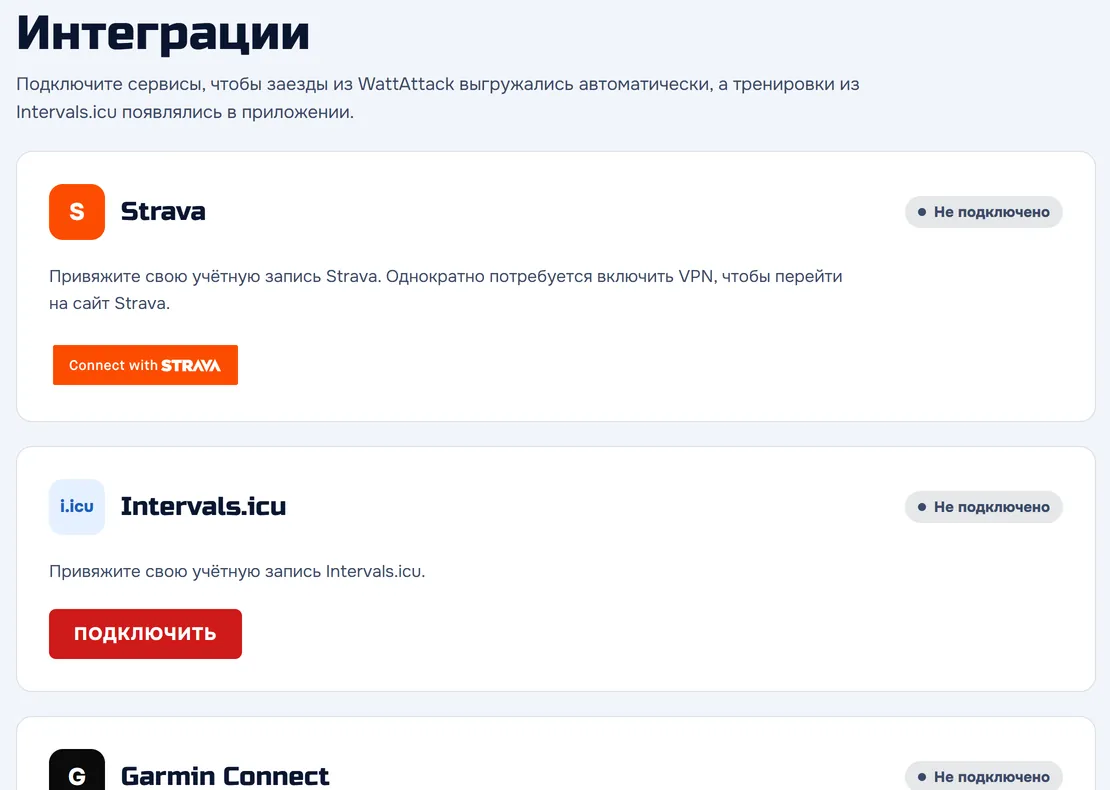
Strava, Garmin, Intervals.icu
Strava — rides are uploaded automatically. Connecting needs a VPN once (for users in Russia).
Garmin Connect — via the WattAttack Companion app on your phone.
Intervals.icu — ride upload and import of planned workouts.

Still have questions?
Message us in the chat — we’ll help. Answers to common questions are in Help.